
Once activated, NativeDesk adds a dedicated management suite directly into your WordPress sidebar menu. Here is a breakdown of the key screens:
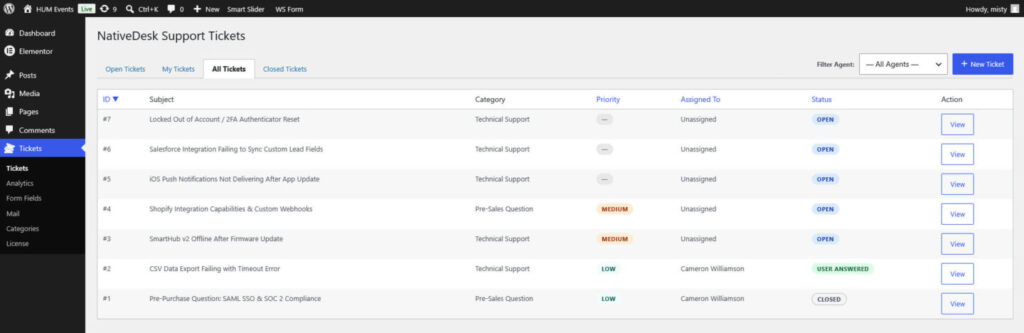
- The Main Ticket Dashboard: The central command hub where your support team manages all incoming traffic. From here, agents can view ticket statuses, filter by priority or assignee, and quickly jump into individual customer conversations.
- Individual Ticket View & Response Screen: When you click into a specific ticket, you are greeted with the comprehensive conversation workspace displaying the customer’s original request, historical message threads, metadata, and reply editor.
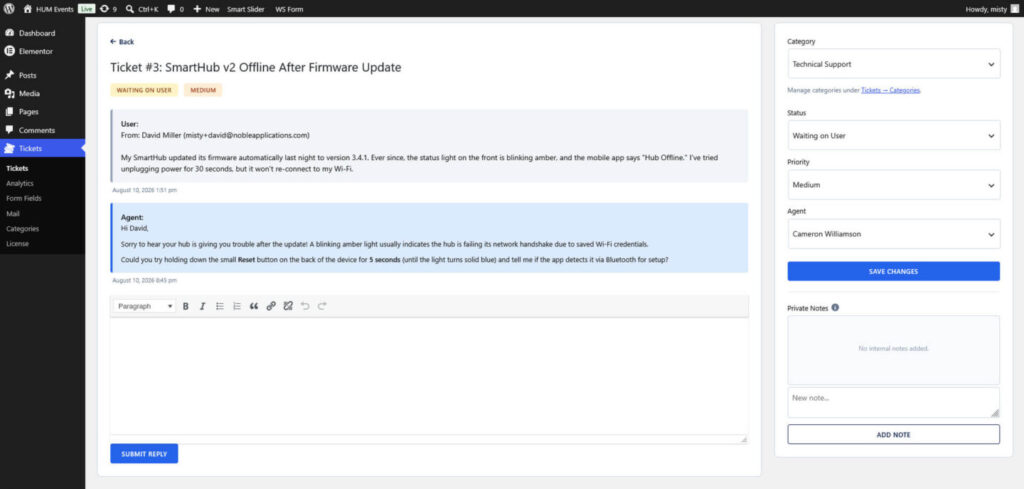
- Private Internal Notes (Pro Feature): Within the ticket view, agents can switch from a public reply to a private internal note to keep staff communication securely sectioned off.
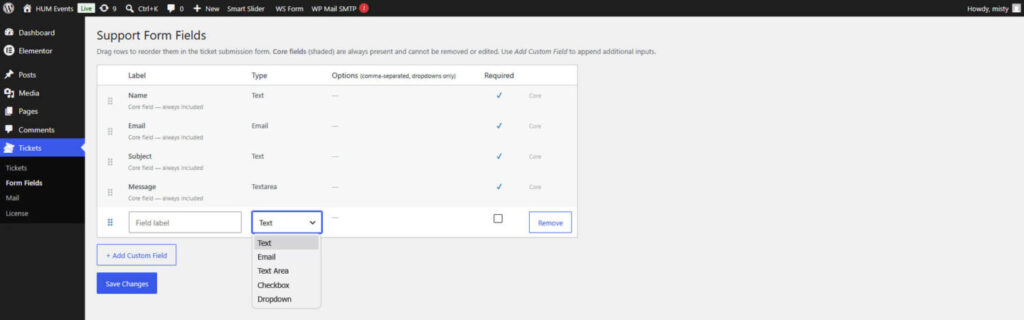
- Custom Form Builder (Pro Feature): Found under the NativeDesk Tickets > Form Fields area, this modular builder lets you add, remove, or modify custom fields on your frontend submission form.
- Performance Analytics Dashboard (Pro Feature): A dedicated reporting screen that visualizes critical team metrics, such as average response times, resolution rates, and ticket volumes.
- [Placeholder: Screenshot of the NativeDesk analytics dashboard displaying performance charts and resolution metrics]